
Computer Repair
7 Signs Your Computer Needs Professional Repair (And When to Get Help)
Is your computer slow, overheating, or constantly crashing? Learn seven warning signs that it's time for professional computer repair.
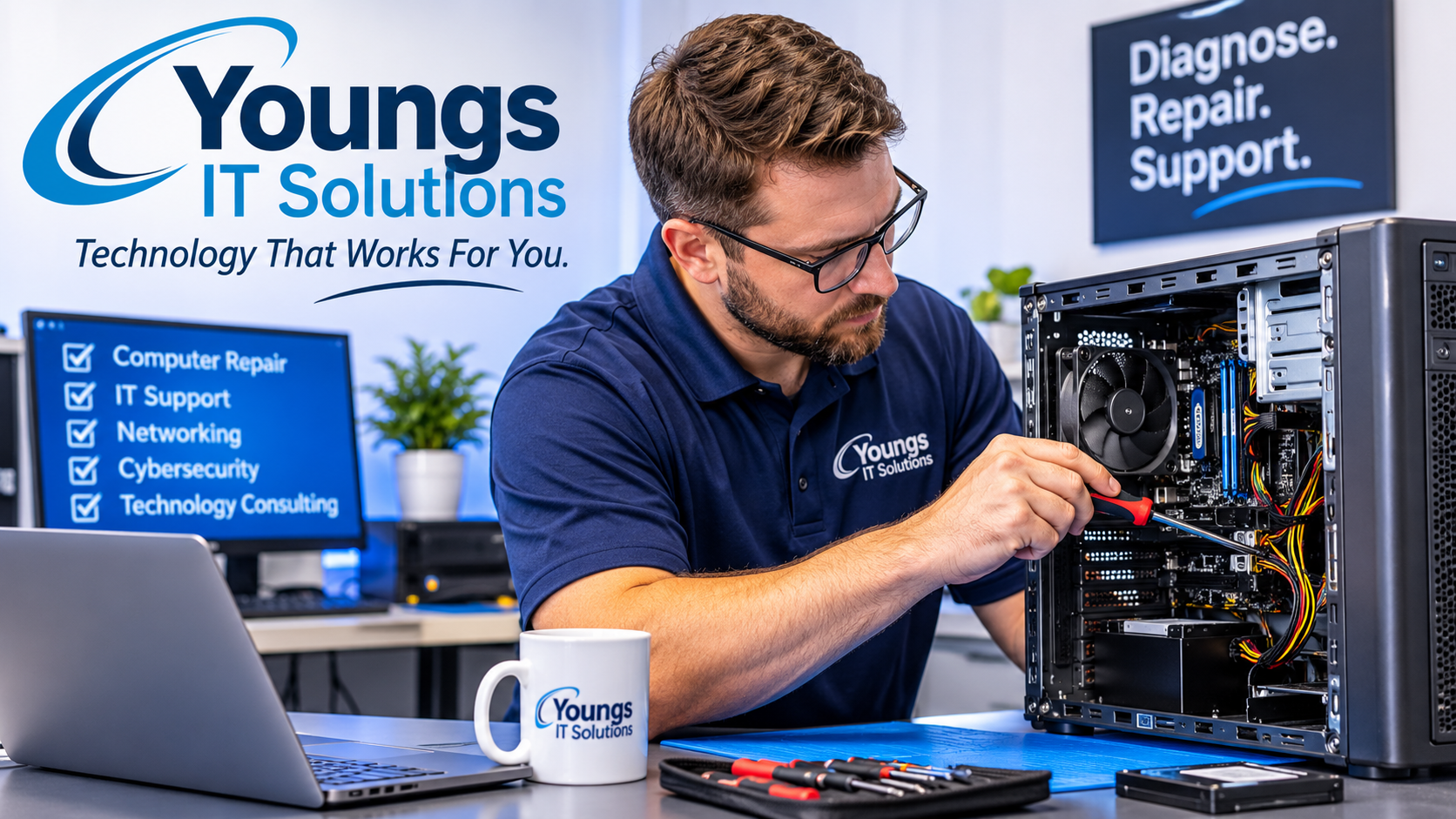
Is your computer running slower than usual, freezing unexpectedly, or making unusual noises? These problems can be more than minor inconveniences. They may be warning signs of hardware failure, software problems, overheating, or other technical issues.
Whether you use a computer for everyday activities, remote work, or running a business, keeping it reliable is important. Ignoring early warning signs can lead to more serious problems, lost productivity, and potentially lost files.
At Youngs IT Solutions, we help homeowners and businesses troubleshoot computer problems, diagnose hardware and software issues, and get their technology working properly again.
Here are seven signs that your computer may need professional repair.
1. Your Computer Has Become Extremely Slow
A computer that takes several minutes to start, struggles to open applications, or frequently freezes during everyday tasks may have an underlying problem.
Some common causes include:
- Too many programs running in the background.
- Insufficient available memory (RAM).
- A nearly full hard drive or solid-state drive (SSD).
- Outdated software or device drivers.
- Malware or unwanted applications.
- An aging or failing storage device.
What you can try
Before scheduling a repair, consider restarting your computer, closing unnecessary applications, checking available storage, and installing pending operating system updates.
If performance remains poor, there may be a hardware or software issue that requires further investigation.
A professional diagnostic can help determine whether your computer needs maintenance, a hardware upgrade, or a more extensive repair.
2. Your Computer Frequently Freezes, Crashes, or Shows Blue Screens
Unexpected freezes, repeated application crashes, and Windows blue screen errors are signs that something may not be functioning correctly.
These problems can occur because of:
- Faulty or incompatible device drivers.
- Defective RAM.
- Failing storage hardware.
- Overheating.
- Corrupted operating system files.
- Software conflicts.
An occasional application crash does not necessarily mean your computer needs repair. However, repeated crashes, especially during normal use, should not be ignored.
What you can try
Write down any error messages or error codes you see. Note when the problem occurs, such as during startup, while opening a particular program, or when performing demanding tasks.
This information can help narrow down the cause of the problem.
Avoid repeatedly forcing your computer to restart without understanding what is causing the crashes. Persistent problems may require professional troubleshooting.
3. Your Computer Overheats or the Fans Are Constantly Loud
Computers generate heat during normal operation, but excessive heat can cause performance problems and potentially damage components.
Warning signs include:
- Fans running loudly even when the computer is idle.
- The computer becoming unusually hot.
- Unexpected shutdowns.
- Performance slowing down during demanding tasks.
- The laptop becoming uncomfortable to use.
Common causes include dust buildup, blocked ventilation, malfunctioning cooling fans, or problems with the cooling system.
What you can try
Make sure your computer has adequate ventilation. Keep laptops on hard, flat surfaces rather than blankets, pillows, or other materials that can block air vents.
Avoid placing desktop computers inside enclosed spaces with poor airflow.
If the computer continues overheating or shutting down unexpectedly, professional inspection may be necessary.
Continuing to operate a severely overheating computer can increase the risk of hardware damage. Shut it down and allow it to cool if it becomes excessively hot or repeatedly shuts itself off.
4. Your Computer Is Making Unusual Noises
Strange sounds coming from your computer should not be ignored.
Pay attention to noises such as:
- Repeated clicking or grinding.
- Loud buzzing.
- Rattling.
- Fans scraping or vibrating.
- Unexpected mechanical noises.
A loud fan may indicate dust buildup, a worn fan bearing, or another cooling problem.
Repeated clicking or grinding from a computer with a mechanical hard drive may indicate a failing drive. This is especially concerning if you also experience freezing, missing files, or startup problems.
What you can try
First, identify where the noise is coming from. A fan, mechanical hard drive, or loose component can produce different sounds.
If you suspect a mechanical hard drive is failing, avoid repeatedly restarting or running unnecessary diagnostics. Back up important files immediately if the drive is still operating reliably enough to do so.
If the clicking or grinding continues, power down the computer and seek professional assistance. Further operation may increase the risk of data loss.
5. Your Computer Has Trouble Starting or Loading Windows
A computer that takes multiple attempts to start, becomes stuck on the startup screen, or displays boot errors may have an operating system or hardware problem.
Possible causes include:
- Corrupted operating system files.
- Failed Windows updates.
- Incorrect startup configuration.
- Damaged storage devices.
- Hardware connection problems.
- A failing hard drive or SSD.
Sometimes a startup problem can be caused by a relatively simple software issue. Other times, it may indicate that an important hardware component is failing.
What you can try
Disconnect unnecessary USB devices and external accessories, then try starting the computer again.
Take note of any error messages displayed during startup.
Avoid reinstalling Windows or formatting the drive before understanding the problem. Those actions can result in data loss if important files have not been backed up.
A professional diagnosis can help determine whether the issue is related to Windows, the storage device, or another hardware component.
6. You Notice Pop-Ups, Suspicious Programs, or Other Signs of Malware
Unexpected pop-ups, browser redirects, unfamiliar applications, and unusual computer behavior may indicate malware or an unwanted software installation.
Other warning signs include:
- Your browser homepage changes unexpectedly.
- Unknown extensions appear in your browser.
- Security warnings keep appearing.
- Your computer becomes unusually slow.
- Programs open or close without your involvement.
- You notice unfamiliar activity on your accounts.
Malware can affect personal computers and business systems alike. Some infections are designed to steal personal information, capture login credentials, or encrypt important business files.
What you can try
Avoid clicking suspicious advertisements, links, or unexpected security warnings.
Run a scan using a trusted, up-to-date security application.
If you suspect ransomware or an active compromise, disconnect the computer from the network to help limit further spread. Do not delete suspicious files or attempt random cleanup procedures before getting appropriate assistance.
For business computers, notify the person responsible for IT security.
Professional malware assessment and cleanup can help identify the problem, remove unwanted software when possible, and recommend steps to improve security.
7. Your Computer Has Hardware Problems or Physical Damage
Sometimes the warning signs are not related to software at all.
Physical hardware problems can affect desktops and laptops in several ways.
Examples include:
- A laptop battery that no longer holds a charge.
- A damaged charging port.
- A broken or flickering display.
- A keyboard or touchpad that stops responding.
- USB ports that no longer recognize devices.
- Unexpected power loss.
- A computer that will not turn on.
These problems may be caused by damaged components, electrical issues, loose connections, or normal hardware wear.
What you can try
Check that power cables and external connections are secure. When possible, test with a known-compatible power adapter.
Do not attempt to open a damaged power supply or work on internal electrical components without the proper experience.
Important: If a laptop battery appears swollen, stop using the device, unplug it if safe to do so, and do not press, puncture, or attempt to remove the battery. Arrange professional service.
A qualified technician can inspect the affected components and determine whether repair or replacement is the better option.
When Should You Stop Troubleshooting and Call a Professional?
Some computer problems can be resolved with basic maintenance. Others require specialized tools, technical experience, and proper diagnostic procedures.
Consider professional assistance when:
- The same problem keeps returning.
- Your computer repeatedly crashes or shuts down.
- You suspect a failing hard drive or SSD.
- Your computer overheats despite proper ventilation.
- You experience persistent startup problems.
- Malware or suspicious activity is affecting your system.
- Hardware has been damaged.
- Important files are at risk.
Continuing to troubleshoot a failing computer without understanding the underlying problem can sometimes make the situation worse.
Professional diagnostics can help identify the cause before unnecessary parts are purchased or additional work is performed.
Is It Better to Repair Your Computer or Replace It?
Not every computer problem requires purchasing a new device.
In many situations, a repair or hardware upgrade may be a more economical option.
For example:
| Computer Problem | Possible Solution |
|---|---|
| Slow performance | SSD or RAM upgrade, software maintenance |
| Overheating | Cooling system inspection and cleaning |
| Frequent crashes | Hardware diagnostics or driver troubleshooting |
| Startup problems | Operating system repair or storage replacement |
| Malware infection | Malware assessment and cleanup |
| Damaged hardware | Component repair or replacement |
The best option depends on the computer's age, condition, specifications, repair cost, and intended use.
A professional evaluation can help you make an informed decision about whether repairing, upgrading, or replacing your computer makes the most sense.
Professional Computer Repair and IT Support from Youngs IT Solutions
Computer problems can interrupt your personal activities, affect your work, and create unnecessary stress for your business.
At Youngs IT Solutions, we provide professional IT services designed to help homeowners and businesses resolve technology problems.
Our services include:
- Desktop and laptop diagnostics.
- Computer repair and troubleshooting.
- Hardware and software installation.
- Computer performance optimization.
- Operating system troubleshooting.
- Hardware upgrades and recommendations.
- Virus and malware troubleshooting.
- Network troubleshooting and installation.
- General IT consulting and technical support.
We serve residential customers and businesses in the Springfield, Illinois area, with remote and on-site support options depending on the service.
We believe in clear communication and transparent hourly pricing. Before work begins, we discuss the issue, explain the proposed service, and provide the applicable rate and estimated time.
Need Help With Your Computer?
Don't wait until a small computer problem becomes a major headache.
Whether your desktop is running slowly, your laptop is overheating, or your business computer is experiencing repeated problems, Youngs IT Solutions can help you determine the next steps.
Contact us today to discuss your computer repair or technical support needs.
Youngs IT Solutions
Technology That Works For You.
Phone: 309-431-1319
Website: https://www.youngs-it.solutions
General Inquiries: [email protected]
Technical Support: [email protected]
Quotes & Estimates: [email protected]
Youngs IT Solutions — Professional IT Services You Can Count On.